“In-memory” – What does that mean?
 By Declan Rodger | 4 December 2025
When I first started as a consultant, I often heard the sales team confidently tell customers that Planning Analytics (back then known as TM1) was an “in-memory tool” — and that meant it was fast. Everyone in the room nodded along, no questions asked. Did they all already know what that meant? Or did they not care? At the time, I didn’t really understand it myself. I knew it was true, but I never dug deeper. Over the years, though, I started wondering: why does in-memory make it fast? In this article, I’ll share what I’ve learned and explain the real reason behind that claim in simple terms.
Storage Method
Planning Analytics (or TM1) was invented back in 1983 when the choice was to store and access data on a Hard Disk Disk (HDD) or Random Access Memory (RAM):
- HDD – Works like an old record player with spinning disks and a little arm; the arm uses a magnetic field to change tiny areas of the disk to store data between a 1 and a 0.
- RAM – Works purely on the flow of electricity, where a current either passes through a capacitor or it doesn’t, representing a 1 or a 0. The flow of electricity must remain active, or the data is lost.

So both types of storage were doing the same thing (storing 1s and 0s), but the HDD required physical movement of parts, whereas RAM purely needed a flow of electricity – it doesn’t take a rocket scientist to work out which of those things would be faster.
But nowadays, a third type of drive, the Solid State Drive (SSD), is far more common and has replaced HDDs in a lot of cases:
- SSD – Also uses electricity to store its 1s and 0s, but in a different way, where the “gate” that holds the electrical charge (the 1 or the 0) is insulated so the charge can’t escape when the flow of electricity stops.
Now it’s a bit more complicated as both RAM and SSD use the flow of electricity to store data. Is RAM still faster than an SSD? The answer is still a resounding yes.
- The Central Processing Unit (CPU), which is the brain of the computer, can interact directly with every capacitor in the RAM – going straight to where it needs to go and doing what it needs to do.
- SSDs – every request from the CPU first has to go through many different layers of controllers or buffers to get to the data, which is stored inside “Pages” and “Blocks”; this means that the CPU has to find a free page and if there’s not a free one it needs to erase an entire block before it can write the data.
Basically, it’s the difference between taking a step or a small stroll.
Proximity
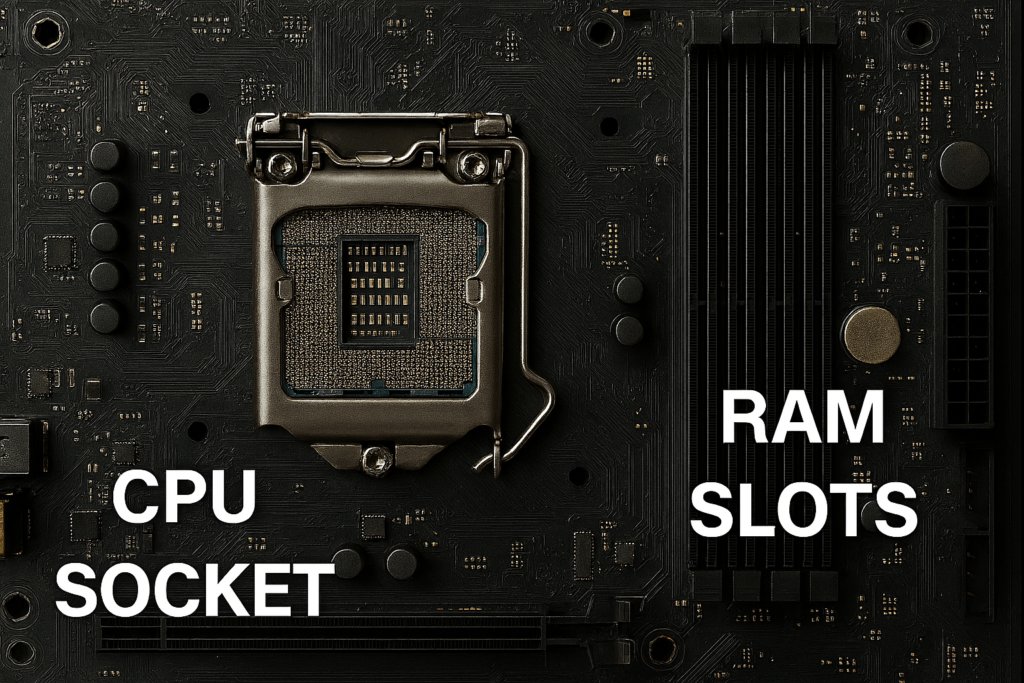
As mentioned above, the CPU is the brain of the computer and directs all the interactions with the different types of storage. So this is where distance also becomes a factor. If you have ever looked at a motherboard (be it for a home PC or a server – they are basically the same), the RAM tends to sit right next to the CPU; whereas SSDs and HDDs are stored further away. It’s not as important a factor as the method of storage when it comes to speed, but it does still play a part in that the fewer layers of electronics, controllers and buses that the data needs to travel through, the quicker the journey will be.
Elephant in the room
Figures vary depending on where I looked, but rough averages have RAM being approximately 10 times faster than an SSD purely for read/write of the data and somewhere between 100 – 300 times faster than HDDs. So why aren’t all programs and apps purely in memory?
The main answer to that is (as often is the case) cost – RAM is more expensive than SSDs or HDDs. The benefit of using RAM is obvious where you are constantly manipulating large amounts of data (such as you do with a planning application), but if your application doesn’t actually have to change the data you store very often (or in such large quantities) then the speed difference is less important, and the cheaper option makes sense.
But in a Planning Analytics application, you can use top-down spreading to change 1 number and have it proportionally alter millions of 1s and 0s in the background – I certainly don’t want to wait for a spinning magnet to find and update all those pieces of data!
The SCARY part
RAM is VOLATILE – in the sense that it’s called a volatile type of memory, whereas SSD and HDD are considered non-volatile.
You don’t need to know what that means in memory terms to know that volatile is generally a negative word. In this sense, it’s the fact that RAM needs that constant flow of electricity to keep storing the data; if you turn the PC off – everything stored in RAM just disappears. Again, it does not take a rocket scientist to know that losing your data at the end of a planning cycle is the sort of thing that might send coffee cups flying around the room.
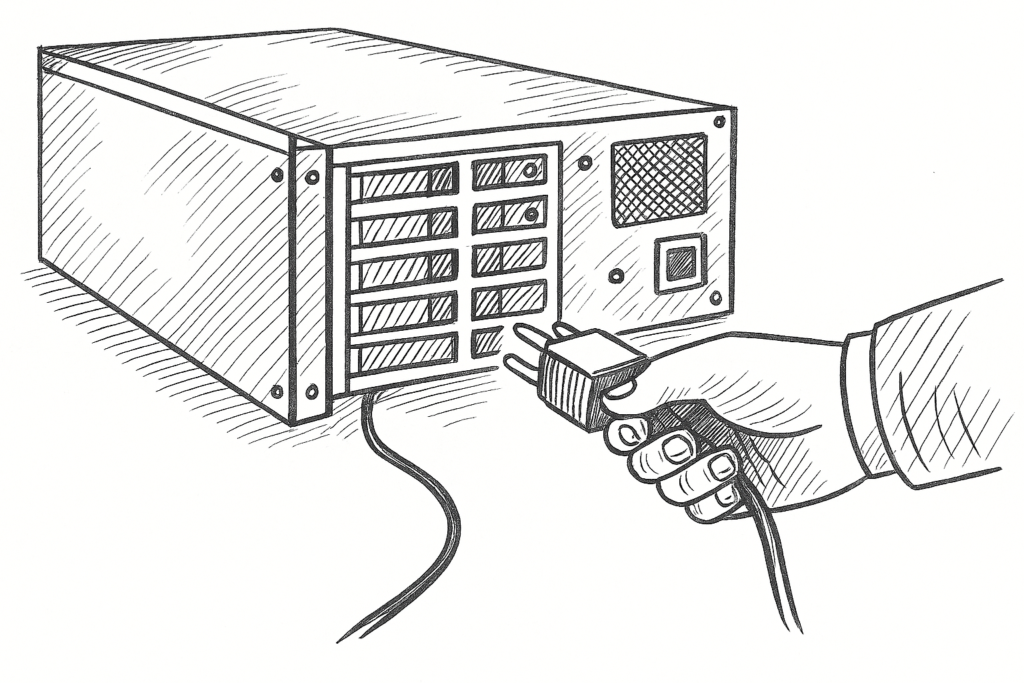
So that is where Planning Analytics (and other in-memory applications) also rely on the non-volatile SSD and HDD technology. You, as the user, interact with data stored in the RAM, this allows you to read and write huge volumes of data to your heart’s content. Then in the background, the computer will take snapshots of the data stored in RAM and move it to an SSD or HDD. So when the PC is restarted, it loads it all back into RAM, and you are good to pick up where you left off.
Then you have the risk of a power cut, meaning that your “snapshot” doesn’t include all of the latest changes you have made… oh well, you only lose a bit of data, and that’s ok right? NO, of course not! We hope all the changes you make are done for a reason and should still be there. So that is where log files also record all transactions, allowing the system to recover them on startup if it notices they were made after the snapshot. But logging ALL of your transactions can be slow – so this is where intelligent design of your model comes into play to make sure you only log the transactions that need to be logged, and snapshots are taken at sensible times.
Summary
Everything above explains conceptually how being “in-memory” CAN be fast. So if you are having any issues with your Planning Analytics application being slow, then it’s a good time to investigate:
- Whether your hardware is sufficient? If you exceed the amount of RAM you have, it won’t crash (not straight away anyway) but will instead start using your other drives, and be slower.
- Whether the object design is inefficient? Slow cube views could indicate calculations (rules and feeders) or cube structures themselves not being fit for purpose.
- Whether the UI is sensible? If Workspace or Excel are slow, it could be a case that the interface is trying to do more than you actually need/want it to.
Ok, I started that thinking I would write a comprehensive list of points that could cause a model to be slow, but then realised it would probably end up quadrupling the size of this post. At the end of the day, it all comes down to the fact that a Planning Analytics model CAN and SHOULD be fast – if it isn’t, there is probably something wrong in the design. If that’s the case, take some time to investigate (we of course can help) and address it now and get your system back to where it should be.
Declan Rodger
Declan is an IBM Champion for Data & AI, he is the Technical Director for Spitfire Analytics. Excited to share his experiences with IBM Planning Analytics and can often be found writing technical articles.
Posted 4 months ago in Articles. Filed in Design & Implementation.